
EXCEL MASTERY: BEGINNER TO ADVANCED NOTES (SELF-EXPLANATORY)
Code4Academy – Data Analysis & Automation
📊 LESSON 1: Excel Introduction
Microsoft Excel is a powerful spreadsheet application used to store, organize, and analyze data.
What is Microsoft Excel?
- Excel is a Spreadsheet Program developed by Microsoft.
- It uses a grid of rows and columns to manage data.
- It allows you to perform complex calculations quickly using formulas.
- Excel is the industry standard for Data Analysis and financial reporting.
- It provides tools to turn raw numbers into visual charts and graphs.
Why Learn Excel?
Excel is used in almost every professional field. Here is why it is essential:
- Organization: Keep track of students, inventory, or expenses.
- Automation: Write a formula once, and it calculates for you forever.
- Decision Making: Analyze trends to make better business choices.
- Efficiency: Process thousands of rows of data in seconds.
A Simple Excel Calculation
Example
To add two numbers in Excel, you don't just type the answer. You use a formula:
  A1 = 10
  B1 = 20
  C1 = =A1+B1
The result in cell C1 will automatically show 30.
Key Terms Explained
- Workbook: The entire Excel file you save on your computer.
- Worksheet: A single page or "tab" inside the workbook.
- Cell: The small box where you enter data (e.g., A1, B5).
- Formula Bar: The bar at the top where you can see or edit what is inside a cell.
- Ribbon: The menu at the top containing tools like Font, Color, and Charts.
What is an Excel Formula?
An Excel formula is an expression that operates on values in a range of cells. All formulas must start with an equals sign (=):
=SUM(A1:A10)The formula above tells Excel: "Add up every number found from box A1 to box A10."
Excel Use Cases
Excel can be used for many real-life tasks. At Code4 Academy, we focus on:
- Student Management: Recording scores and calculating grades.
- Business Tracking: Managing sales, profits, and losses.
- Data Cleaning: Fixing messy lists of names or contact details.
- Project Planning: Creating schedules and timelines.
Excel Version History
Excel has evolved significantly to become the advanced tool it is today:
1985 — First version of Excel released (for Mac)
1987 — Excel 2.0 (First version for Windows)
1993 — Excel 5.0 (Introduction of VBA and Macros)
2007 — Excel 2007 (New "Ribbon" interface introduced)
2010 — Excel 2010 (64-bit support & Sparklines)
2013 — Excel 2013 (Flash Fill & Power View)
2016 — Excel 2016 (New Charts & Power Query integration)
2019 — Excel 2019 (IFS function & Map charts)
2021 — Excel 2021 (XLOOKUP & Dynamic Arrays)
2024 — Excel 365 (AI Integration & Python in Excel)
💡 Pro Tip: Excel is not just for maths. It is a tool for problem-solving!
Class Exercise
- Open Microsoft Excel on your computer.
- Identify the Formula Bar and the Ribbon.
- Click on cell D5 and type your name.
- In cell A1 type 50, in A2 type 100, and in A3 type
=A1+A2. Press Enter and see the result!
🔰 LESSON 2: Getting Started: Interface & Layout
To use Excel effectively, you must first understand the workspace. It is designed to help you find tools quickly and manage your data efficiently.
The Main Components
When you open Excel, you will see several key areas. Understanding these names will help you follow advanced tutorials later.
- The Ribbon: The strip of buttons and icons at the top (Home, Insert, Page Layout, etc.). This is your "Toolbox." Everything from changing text color to creating charts happens here.
-
Formula Bar: Located just below the ribbon. It shows the "behind the scenes" of a cell. While a cell might show the number "100," the Formula Bar might show the calculation
=50+50. - Name Box: Located to the left of the formula bar. It tells you exactly which cell you are currently clicking on (e.g., "B2"). It is the "GPS" of your spreadsheet.
- Sheet Tabs: Found at the very bottom. You can have multiple pages (sheets) in one single file, just like a notebook has many pages.
- Quick Access Toolbar: The tiny icons at the very top left (Save, Undo, Redo) that allow you to perform common tasks with one click.
Visualizing the Workspace
Think of Excel like a desk. The Ribbon is your drawer of tools, the Worksheet is the paper you are writing on, and the Formula Bar is the magnifying glass that shows exactly what you wrote.
[ Top: Quick Access Toolbar (Save, Undo, Redo) ]
[ Ribbon: File | Home | Insert | Page Layout | Data ]
+---------------------------------------------------+
| Name Box [ A1 ]       Formula Bar [ =10+20       ]|
+---------------------------------------------------+
|     |   A   |   B   |   C   |   D   |   E   |  ... |
|  1  | Row 1 |       |       |       |       |      |
|  2  | Row 2 | CELL  |       |       |       |      |
|  3  | Row 3 |       |       |       |       |      |
+---------------------------------------------------+
[ Bottom: Sheet1 | Sheet2 | Sheet3  (+)             ]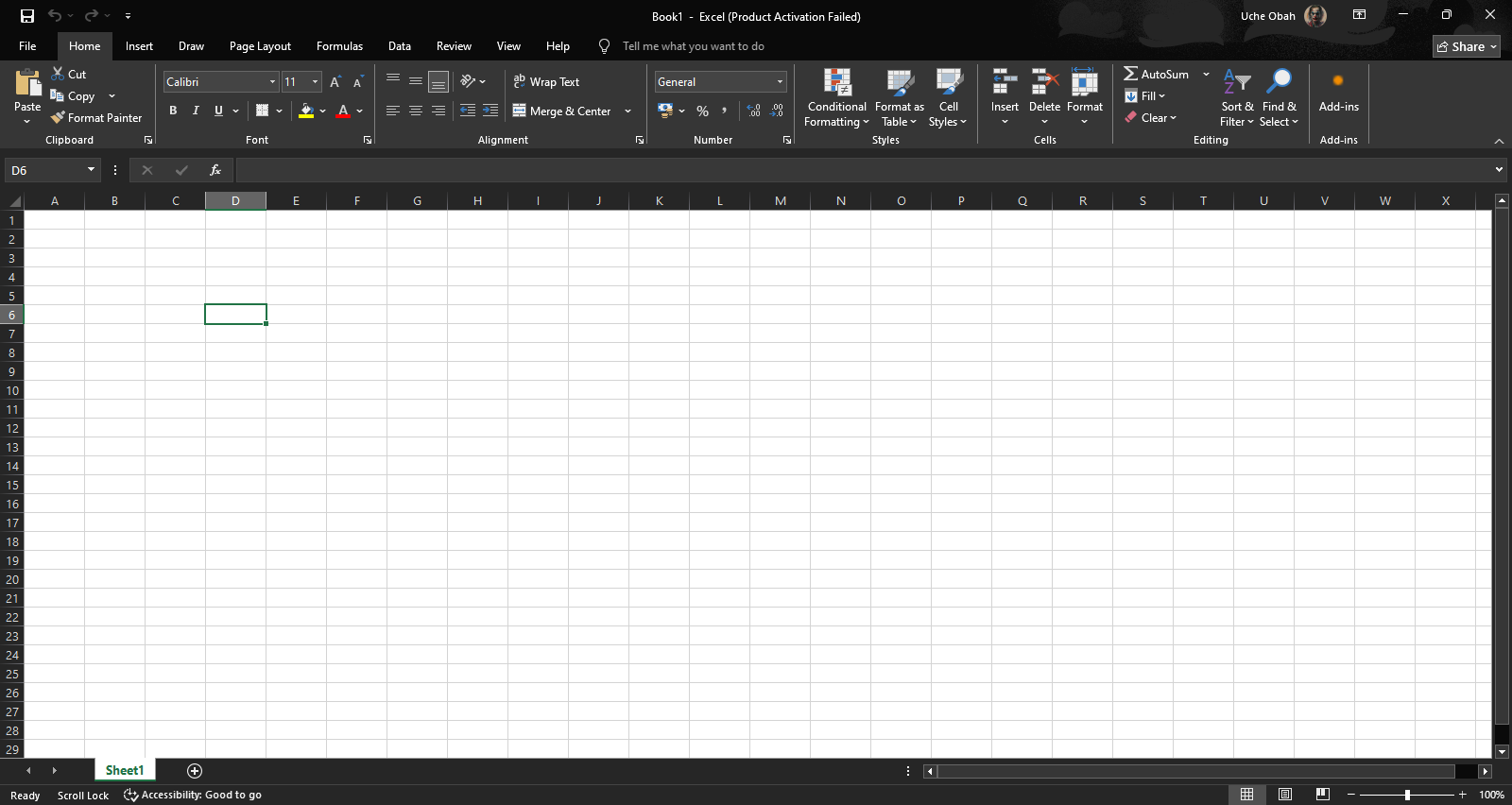
Important Rules
- Don't get overwhelmed: You don't need to know every button on the Ribbon to be a pro. We will learn them one by one.
- Check the Name Box: If you are lost, look at the Name Box to see exactly where your cursor is sitting.
- The File Tab: This is where you go to Save, Open new files, or Print your work.
💡 Student Tip: You can collapse the Ribbon by double-clicking any tab (like "Home") if you need more space to see your data!
Class Exercise
- Open a new Excel Workbook.
- Look at the very bottom of your screen. Click the "+" icon next to "Sheet1" to add a new sheet.
- Right-click the new "Sheet2" tab and select Rename. Type "Practice" and press Enter.
- Click on the Home Tab and try to find the "Font" group. This is where you will eventually change text colors and sizes.
- Type your name in any cell and look at the Formula Bar—notice how it mirrors what you type.
🔰 LESSON 3: Excel Overview: The Grid System
The "Grid System" is the heart of Excel. Every piece of data you enter is stored in a specific location within this grid so that Excel can find it, move it, or do math with it.
Columns, Rows, and Cells
Think of Excel like a map. To find a location, you need a vertical coordinate and a horizontal coordinate.
- Columns (Vertical): These run from top to bottom. They are labeled with Letters (A, B, C, D...). There are over 16,000 columns in a single sheet!
- Rows (Horizontal): These run from left to right. They are labeled with Numbers (1, 2, 3, 4...). A single sheet has over 1 million rows.
- Cells (The Intersection): A cell is the single "box" where a Column and a Row meet.
How to Read a Cell Address
Every cell has a unique name called a Cell Reference. You always say the Letter (Column) first, then the Number (Row).
- The very first cell in the top-left corner is A1.
- If you are in Column D and Row 10, your cell address is D10.
- If you select multiple cells together (e.g., from A1 down to A5), this is called a Range.
Rules for a Clean Grid
To be a professional data analyst at Code4 Academy, follow these grid rules:
- One Piece of Info Per Cell: Don't put a student's name and their score in the same box. Put the Name in A2 and the Score in B2.
- Use Headers: Always use the first row (Row 1) to label your data (e.g., "Student Name", "Math Score", "Date").
- Alignment: Notice that Excel automatically moves Text to the left and Numbers to the right. If your number is on the left, Excel thinks it's a word!
💡 Did you know? If you keep typing past column Z, Excel starts labeling them AA, AB, AC, and so on!
Class Exercise
- Click on cell C3 and type the word "Subjects".
- Go to cell C4 and type "Mathematics".
- Go to cell D4 and type the number 85.
- Look at the Name Box (top left) as you click each cell to confirm you are in the right place.
- Try to find the very last cell in Row 1 by holding Ctrl and pressing the Right Arrow key. (Press Ctrl + Home to get back to A1!)
🔰 LESSON 4: Understanding Excel Syntax
In programming and data analysis, Syntax refers to the specific set of rules that tell the computer how to read your instructions. If you break the syntax rules, Excel will show an error!
The Power of the Equals Sign (=)
The most important rule in Excel is: Every calculation or function MUST start with an equals sign.
- If you type
10 + 10into a cell and press Enter, Excel sees it as a "Label" (text) and does nothing. - If you type
=10 + 10, Excel sees it as a "Formula" and displays 20.
The Anatomy of an Excel Formula
A standard formula consists of three parts:
- The Equal Sign: To start the calculation.
- Operands: The values or cell addresses you want to use (e.g., 50 or A1).
- Operators: The symbols that tell Excel what math to do.
Mathematical Operators in Excel
Excel uses standard symbols for math, but some look different than what you use in your notebook:
- + (Addition): Adds values (e.g.,
=A1+B1). - - (Subtraction): Subtracts values (e.g.,
=A1-B1). - * (Multiplication): Uses an asterisk, not an 'x' (e.g.,
=A1*B1). - / (Division): Uses a forward slash (e.g.,
=A1/B1). - ^ (Exponent): Used for "raised to the power of" (e.g.,
=2^3is 8).
Formula Bar vs. Cell Display
When you use correct syntax, the cell becomes a "mask."
- The Cell: Displays the Result (e.g., 150).
- The Formula Bar: Displays the Syntax used to get that result (e.g.,
=100+50).
💡 Common Error: If you see #NAME? in a cell, it usually means you forgot the equals sign or misspelled a function name!
Class Exercise
- Click Cell B1 and type
500. - Click Cell B2 and type
200. - Click Cell B3 and type the syntax:
=B1-B2. Press Enter. - Now, change the number in B1 to
1000. Notice how the result in B3 changes automatically! This is the power of using cell addresses instead of just typing numbers.
🔰 LESSON 5: Working with Ranges
In the previous lesson, we learned how to talk to one cell (like A1). However, in real-world data analysis, you will often need to talk to a group of cells at once. This group is called a Range.
What is a Range?
A range is a collection of two or more cells. By selecting a range, you can format, delete, or calculate hundreds of boxes with a single command.
Range Syntax: The Colon (:)
To tell Excel which cells are in your group, we use a colon :. Think of the colon as the word "Through".
- A1:A10 means: "Cell A1 through Cell A10" (A vertical column).
- A1:E1 means: "Cell A1 through Cell E1" (A horizontal row).
- A1:B5 means: "The block starting at A1 and ending at B5" (A rectangular block).
How to Select Ranges
- Using the Mouse: Click the center of the first cell and drag your mouse to the last cell. The area will turn gray or blue.
- Using the Keyboard: Click the first cell, hold down the Shift key, and use your arrow keys to highlight the rest.
- Selecting Everything: Click the small triangle button above Row 1 and to the left of Column A to select the entire worksheet.
Why Are Ranges Important?
Ranges allow you to use powerful functions. Instead of typing =A1+A2+A3+A4+A5, you can simply tell Excel to sum the range:
=SUM(A1:A5)Naming a Range
You can give a group of cells a name (like "StudentScores") so you don't have to remember the cell addresses.
To do this: Highlight the cells, click inside the Name Box (top left), type a name, and press Enter.
💡 Student Tip: If you want to select two ranges that are not touching each other, hold the Ctrl key while clicking and dragging!
Class Exercise
- Type the numbers 10, 20, 30, 40, and 50 in cells A1, A2, A3, A4, and A5.
- Try to highlight all of them using your mouse. Look at the Name Box—it will show you how many rows and columns you are selecting (e.g., 5R x 1C).
- In cell A6, type
=SUM(A1:A5)and press Enter. - Now, highlight the cells A1 to A5 and change their background color to Yellow using the "Fill Color" bucket on the Home tab. Notice how they all change together!
🔰 LESSON 6: Speed Tools: The Fill Handle
Data analysis is about working smarter, not harder. One of the most powerful "smart" tools in Excel is the Fill Handle. It allows you to copy data and complete patterns in a split second.
What is the Fill Handle?
When you click on any cell, look at the bottom-right corner of the green border. You will see a tiny square. That is the Fill Handle.
How to Use It
- Select the cell you want to copy or use as a starting point.
- Hover your mouse over that tiny square until your cursor changes into a thin black cross (+).
- Click and drag down or across to fill the neighboring cells.
Three Ways to Use the Fill Handle
1. Copying Data
If you type "Code4 Academy" in A1 and drag the handle down to A10, Excel will copy that exact text into every cell.
2. Recognizing Patterns (Series)
Excel is smart enough to recognize common sequences. Try these:
- Days: Type "Monday", drag down, and Excel fills "Tuesday, Wednesday..."
- Months: Type "Jan", drag down, and Excel fills "Feb, Mar, Apr..."
- Dates: Type "01/01/2026", drag down, and Excel fills the calendar for you.
3. Number Sequences
If you type "1" and drag, Excel might just copy "1, 1, 1". To get "1, 2, 3":
- Type "1" in the first cell and "2" in the cell below it.
- Highlight both cells.
- Drag the Fill Handle down. Excel sees the "step" of +1 and continues the pattern!
💡 Double-Click Trick: If you have a long list of names in Column A and you want to fill a formula in Column B, you don't have to drag! Just double-click the Fill Handle, and Excel will automatically drop the data down to the very last row.
Class Exercise
- In cell A1, type "January". Use the Fill Handle to drag down to A12.
- In cell B1, type "1". In B2, type "2". Highlight both and drag down to B12.
- In cell C1, type "Lesson 1". Drag the handle down and see how Excel automatically changes the number to "Lesson 2", "Lesson 3", etc.
🔰 LESSON 7: Managing Cells: Move, Add & Delete
As you build your data projects, you will often need to change your layout. Knowing how to quickly move, insert, or remove data without breaking your spreadsheet is a vital skill.
1. Moving Cells (The Drag & Drop Method)
You don't always have to Cut and Paste to move data. You can "grab" it!
- Select the cell or Range you want to move.
- Hover your mouse over the border of the selection until the cursor turns into a four-headed arrow.
- Click and drag the data to its new home.
2. Adding Rows and Columns
Forgot to add a student to the middle of your list? You can easily insert a new space.
- To add a Row: Right-click the Number of the row where you want the new space to appear and click Insert. The existing data will move down.
- To add a Column: Right-click the Letter of the column and click Insert. The existing data will move to the right.
3. Deleting vs. Clearing
There is a big difference between "Deleting" and "Clearing" in Excel:
- Clearing Content: Press the Delete key on your keyboard. This wipes the data but keeps the empty box (the cell) where it is.
- Deleting Cells/Rows: Right-click and choose Delete. This removes the entire box and shifts the surrounding data to fill the gap.
4. Hiding Rows or Columns
Sometimes you have "Helper Data" that you don't want others to see.
Action: Right-click a Row or Column header and select Hide. To see it again, highlight the rows on both sides, right-click, and select Unhide.
💡 Pro Tip: To quickly adjust the width of a column so it fits your text perfectly, double-click the line between the Column Letters (e.g., between A and B).
Class Exercise
- Create a list of 3 fruits in cells A1, A2, and A3.
- Right-click the "2" on the far left and select Insert. You should now have an empty row between your first and second fruit.
- Type a new fruit in that empty space.
- Select the entire column A, right-click the letter "A", and choose Delete. Your entire list should disappear and Column B will move to become the new Column A!
🔰 LESSON 8: Undo & Redo (The "Safety Net")
Making mistakes is a part of learning. In Excel, you never have to worry about "breaking" your work because you can always go back in time using Undo and Redo.
1. What is Undo?
Undo reverses your last action. If you accidentally delete a complex formula or overwrite a student's score, Undo will bring it back exactly as it was.
- The Icon: Look for the arrow pointing to the Left in the Quick Access Toolbar (top-left corner).
- The Keyboard Shortcut: Press Ctrl + Z.
2. What is Redo?
Redo is the "Undo of Undo." If you undo something but realize you actually wanted that change, Redo will put it back.
- The Icon: Look for the arrow pointing to the Right.
- The Keyboard Shortcut: Press Ctrl + Y.
3. How Far Back Can You Go?
Excel keeps track of your last 100 actions! If you click the small arrow next to the Undo icon, you will see a list of everything you have done recently. You can jump back 10 steps at once by clicking the item in that list.
4. Important Rules
- The Limit: Undo only works for the current session. Once you close the Excel file, you cannot undo actions from the previous day.
- Actions that can't be Undone: Deleting an entire Sheet cannot be undone! Excel will usually show a warning before you do this. Pay attention to warnings!
- Saving: In older versions of Excel, saving might clear your undo history. In modern versions (Office 365), you can still undo even after saving.
💡 Pro Tip: Ctrl + Z is your best friend. Use it as soon as you see something go wrong. It is much faster than trying to re-type data!
Class Exercise
- Type "Code4 Academy" in cell A1.
- Change the font color to Red.
- Now, press Delete on your keyboard to wipe the cell.
- Press Ctrl + Z. Your text should reappear in Red.
- Press Ctrl + Z again. Your text should turn back to Black (reversing the color change).
- Press Ctrl + Y. The text should turn Red again!
🔰 LESSON 9: Basic Formulas (+, -, *, /)
Formulas are the reason Excel is so popular. A formula is an equation that performs a calculation. Instead of doing math in your head, you write a formula once, and Excel does the work for you every time the numbers change.
1. The 4 Basic Operations
Excel uses standard symbols for basic math, though a few might look slightly different from your school notebook:
- Addition (+): Used to find a total (e.g.,
=A1+B1). - Subtraction (-): Used to find the difference or change (e.g.,
=A1-B1). - Multiplication (*): Use the Asterisk (Shift + 8), not the letter 'x' (e.g.,
=A1*B1). - Division (/): Use the Forward Slash (e.g.,
=A1/B1).
2. "Cell Pointing" vs. "Static Numbers"
You can write a formula in two ways, but only one is "The Code4 Way":
- The Static Way:
=10+5. This always equals 15. If you change your data later, you have to rewrite the formula. Avoid this! - The Dynamic Way:
=A1+B1. This adds whatever is inside those boxes. If you change the number in A1, the answer updates automatically!
3. How to Create a Formula Fast
- Type the = sign in the cell where you want the answer.
- Click on the first cell you want to use (Excel will type the address for you!).
- Type your operator (like + or *).
- Click on the second cell.
- Press Enter.
4. Important Rules
- The Order of Operations: Excel follows math rules (BODMAS). It will multiply and divide before it adds or subtracts.
- No Spaces: Do not put spaces inside your formulas (e.g.,
= A1 + B1might work, but it is bad practice). - Check Your Results: If you see
#DIV/0!, it means you are trying to divide a number by zero or an empty cell!
💡 Pro Tip: When you select a cell with a formula, look at the Status Bar at the very bottom of the Excel window. It often shows you a quick "Sum" or "Average" of whatever you have highlighted!
Class Exercise
- In cell A1, type
100. In cell B1, type20. - In cell C1, type
=A1+B1(Addition). - In cell C2, type
=A1-B1(Subtraction). - In cell C3, type
=A1*B1(Multiplication). - In cell C4, type
=A1/B1(Division). - Change the
20in cell B1 to50and watch all four answers in column C change instantly!
🔰 LESSON 10: Relative vs. Absolute References
This is one of the most important lessons in Excel. Understanding the difference between these two types of references will save you hours of work and prevent common calculation errors.
1. What is a Relative Reference?
By default, all cell addresses in Excel are Relative. This means when you copy a formula to another cell, Excel automatically changes the cell addresses based on the direction you moved.
Example: If you have =A1+B1 in cell C1 and you drag it down to C2, Excel "thinks" for you and changes the formula to =A2+B2.
2. What is an Absolute Reference?
Sometimes, you do not want Excel to change the cell address when you copy a formula. You might want to "lock" a specific cell (like a Tax Rate, a Bonus amount, or a Currency Exchange rate) so that every formula points to that exact same box.
To lock a cell, we use the Dollar Sign ($). This is called an Absolute Reference.
- A1 — Relative (Changes when copied)
- $A$1 — Absolute (Stays exactly at A1, no matter where you copy it)
3. How to "Lock" a Cell (The $ Trick)
- Type your formula as usual (e.g.,
=A2 * B1). - Click on the cell address you want to lock (e.g., B1) in the formula bar.
- Press the F4 key on your keyboard. Excel will automatically add the dollar signs:
$B$1. - Press Enter.
4. When to Use Which?
- Use Relative when you are calculating a list of items (like a list of students' totals).
- Use Absolute when your formula needs to refer to one specific "Fixed" value on your sheet.
💡 Common Mistake: If you see your results turning into zeros or errors after dragging a formula down, it usually means you forgot to use an Absolute Reference ($) for your fixed value!
Class Exercise
- In cell D1, type
0.05(this is a 5% tax). - In cells A2, A3, and A4, type the numbers
100, 200, and 300. - In cell B2, type the formula
=A2 * $D$1. - Use the Fill Handle to drag that formula down to B3 and B4.
- Notice how A2 changed to A3 and A4, but $D$1 stayed exactly the same for all of them!
🔰 LESSON 11: Arithmetic Operators & BODMAS
In Lesson 9, we learned basic math. However, when you start combining addition, multiplication, and division in one single formula, Excel needs to know which part to calculate first. To do this, it follows a strict mathematical rule called BODMAS.
1. What is BODMAS?
BODMAS stands for the order in which Excel solves math problems. If you don't follow this, your totals will be wrong!
- B – Brackets / Parentheses
( ) - O – Orders (Powers/Exponents)
^ - D – Division
/ - M – Multiplication
* - A – Addition
+ - S – Subtraction
-
2. Why Order Matters (The Example)
Imagine you want to add 2 and 3, then multiply the result by 2.
- The Wrong Way:
=2 + 3 * 2
Excel will do multiplication first (3 * 2 = 6) and then add 2. Result = 8. - The Correct Way:
=(2 + 3) * 2
Excel will do the brackets first (2 + 3 = 5) and then multiply by 2. Result = 10.
3. The Comparison Operators
Data analysis often involves comparing two numbers. Excel uses these symbols to tell you if something is True or False:
- = Equal to
- > Greater than
- < Less than
- >= Greater than or equal to
- <= Less than or equal to
- <> Not equal to
4. Important Rules
- Nested Parentheses: You can put brackets inside brackets. Excel always starts with the innermost set.
- Left to Right: If a formula has both Multiplication and Division (which have equal priority), Excel simply works from left to right.
- Don't Guess: If you are unsure which part Excel will calculate first, always use **Brackets** to be safe!
💡 Pro Tip: When you type a closing bracket ), Excel will briefly highlight the matching opening bracket ( to help you see if your formula is balanced!
Class Exercise
- In cell A1, type
10. In B1, type5. In C1, type2. - In cell D1, type
=A1 + B1 * C1and press Enter. (Result should be 20). - In cell D2, type
=(A1 + B1) * C1and press Enter. (Result should be 30). - In cell D3, type
=A1 > B1. It will show TRUE because 10 is greater than 5!
🔰 LESSON 12: Parentheses in Complex Math
In the previous lesson, we introduced BODMAS. Today, we will focus on the "B" (Brackets/Parentheses). Parentheses are the most powerful tool for controlling how Excel calculates, allowing you to build complex formulas that are 100% accurate.
1. Why Use Parentheses?
Parentheses tell Excel: "Do this specific part first, no matter what!" Without them, Excel follows its own internal priority list, which might not be what you intended for your data.
2. The "Average" Trap
A common mistake for beginners is calculating a manual average like this:
=10 + 20 + 30 / 3
- What Excel does: It divides 30 by 3 first (result 10), then adds 10 and 20. Total = 40 (Wrong!).
- The Fix:
=(10 + 20 + 30) / 3. Excel adds the numbers first, then divides. Total = 20 (Correct!).
3. Nested Parentheses (Brackets inside Brackets)
For very complex calculations, you might need "Nested" parentheses. Excel calculates from the inside out.
Example: =((10 + 5) * 2) + 100
- Excel does the innermost:
(10 + 5)= 15. - Excel does the next set:
15 * 2= 30. - Excel does the final part:
30 + 100= 130.
4. Visual Aids in Excel
When working with complex math, Excel helps you keep track of your parentheses:
- Color Coding: Each pair of parentheses is given a different color (Black, Red, Green, Purple) so you can see which opening bracket matches which closing bracket.
- The Blink: When you type a closing
), the matching(will briefly bold/flash.
💡 Important Rule: Your formula must always be Balanced. For every opening bracket (, there must be a closing bracket ). If not, Excel will show an error message!
Class Exercise
- Imagine you are calculating a student's final score: (First Test + Second Test) multiplied by a weight of 0.4, plus the Exam multiplied by 0.6.
- In A1 type 15 (Test 1), in B1 type 20 (Test 2), and in C1 type 60 (Exam).
- In D1, type the formula exactly like this:
=((A1+B1)*0.4)+(C1*0.6) - Press Enter. You have successfully used nested parentheses to calculate a weighted grade!
🔰 LESSON 13: Basic Functions: SUM, MIN, MAX
In the previous lessons, we wrote our own math (e.g., =A1+B2). However, Excel has hundreds of built-in "short-cut" programs called Functions. These allow you to perform massive calculations with very little typing.
1. The Anatomy of a Function
Every function follows a strict pattern:
- The Equals Sign (=): To start the instruction.
- The Name: Tells Excel what to do (e.g., SUM).
- The Arguments (Parentheses): The data you want Excel to use.
=NAME(RANGE)2. The SUM Function (The Adder)
Instead of typing =A1+A2+A3+A4+A5, you use SUM to add a whole range at once.
- Syntax:
=SUM(A1:A5) - Benefit: If you add a new row in the middle later, the SUM function updates automatically!
3. MIN and MAX (The Scouts)
If you have a list of 1,000 students, you don't want to scroll through to find the highest or lowest score. Excel can "scout" the data for you.
- MAX: Finds the highest number in a range.
Example:=MAX(B2:B100)tells you the highest grade. - MIN: Finds the lowest number in a range.
Example:=MIN(B2:B100)tells you the lowest price.
4. How to Insert Functions Quickly
- Type
=and start typing the name (e.g.,=SU). Excel will show a list of functions. - Press Tab to select the function you want.
- Highlight the Range with your mouse.
- Press Enter. (Excel will automatically close the parenthesis for you!)
💡 Pro Tip: Look at the Home Tab on the far right. You will see a button that looks like ∑ (AutoSum). If you click this, Excel will try to guess which numbers you want to add and write the formula for you!
Class Exercise
- In cells A1 to A5, type these scores: 45, 88, 72, 31, 95.
- In cell A6, type
=SUM(A1:A5)to get the total. - In cell A7, type
=MAX(A1:A5)to find the best score. - In cell A8, type
=MIN(A1:A5)to find the lowest score. - Change the
31in cell A4 to100. Watch all your answers update!
🔰 LESSON 14: Basic Functions: AVERAGE & COUNT
Now that you know how to find Totals, Highs, and Lows, we need to learn how to find the "Middle" of our data and how to "Count" our records. These two functions are the backbone of any school or business report.
1. The AVERAGE Function (The Mean)
The AVERAGE function adds up all the numbers in a range and then divides by how many numbers there are. In school, this is how you find a student's final grade across multiple subjects.
- Syntax:
=AVERAGE(A1:A10) - Why use it? It’s faster and safer than doing manual math like
=(A1+A2+A3)/3.
2. The COUNT Function (The Tally)
The COUNT function tells you how many cells in a range contain Numbers. It ignores empty cells and cells with text.
- Syntax:
=COUNT(A1:A10) - Example: Use this to see how many students actually showed up for an exam by counting their scores.
3. COUNT vs. COUNTA (Important Difference)
Excel has two different "Counting" robots. You must pick the right one for your data:
- COUNT: Only counts Numbers. (Use this for Scores, Prices, or Ages).
- COUNTA: Counts Anything (Numbers OR Text). Use the "A" for "All". (Use this to count a list of Names).
4. How to Avoid Errors
- Empty Cells:
AVERAGEignores empty cells completely. However, it does include zeros. If a student has a0, it will pull their average down. If the cell is empty, it won't affect the average. - Text in Ranges: If you accidentally include a word in your
AVERAGErange, Excel will ignore the word and only average the numbers.
💡 Pro Tip: If you highlight a group of numbers, look at the very bottom right of your Excel window (the Status Bar). Excel automatically shows you the Average, Count, and Sum of those cells without you typing a single formula!
Class Exercise
- In cells A1 to A5, type these names: John, Mary, Peter, Sarah, James.
- In cells B1 to B5, type these scores: 70, 80, 90, ##, 60. (Note: use
##for the missing score as we practiced). - In cell B6, type
=AVERAGE(B1:B5). Notice how Excel ignores the##. - In cell B7, type
=COUNT(B1:B5). It should give you 4 (because there are 4 numbers). - In cell A7, type
=COUNTA(A1:A5). It should give you 5 (counting the names).
🔰 LESSON 15: Mini Project: Expense Tracker
Congratulations! You have finished the Excel Essentials section. Now, it is time to stop learning and start building. In this project, you will create a professional Expense Tracker to manage your money using everything we have learned so far.
The Goal
You will build a table that records expenses, calculates totals, finds your biggest spending category, and automatically updates when you add new data.
Step 1: Set Up Your Grid
Open a new sheet and set up your headers in Row 1. This gives your data structure.
- A1: Date
- B1: Description
- C1: Category
- D1: Amount
Step 2: Enter Your Data
Enter at least 5 rows of data. Use the Fill Handle to enter dates quickly if needed.
Example: "Food", "Transport", "Data", "Rent".
Step 3: Perform the Calculations
Now, let's use our Functions. Create a "Summary" area to the right (Column F):
- Total Spending: In cell G2, type
=SUM(D2:D20). - Average Expense: In cell G3, type
=AVERAGE(D2:D20). - Most Expensive Item: In cell G4, type
=MAX(D2:D20). - Total Number of Items: In cell G5, type
=COUNT(D2:D20).
Step 4: Use Absolute References
Imagine you want to see what percentage of your total budget each item is.
In cell E1, type "Percent of Total".
In cell E2, type =D2 / $G$2.
Use the Fill Handle to drag it down. Because we used $G$2, the formula won't break!
Step 5: Test the "Safety Net"
- Try deleting one of your amounts. Watch the Total and Average change instantly.
- Press Ctrl + Z to bring the data back.
- Rename your Sheet tab to "My Finances".
💡 Project Tip: To make the numbers look like money, highlight Column D and click the $ sign in the Home tab (Number group).
Checklist for Completion
- Did you use Headers in Row 1?
- Did you use the Fill Handle for any part?
- Do your SUM and MAX functions work?
- Did you use an Absolute Reference ($) to lock your total?
Well done! You are now ready for the INTERMEDIATE section where we make this data look beautiful.
🔰 LESSON 16: Formatting Fonts & Alignment
Now that you know how to handle data and math, it’s time to make your work professional. Proper formatting isn't just about "looking pretty"—it makes your data easier to read and understand.
1. The Font Group
Located on the Home Tab, the Font group is your control center for the style of your text.
- Bold (Ctrl + B): Use this for Headers so they stand out from the data.
- Italic (Ctrl + I): Great for notes or subtitles.
- Font Size: Increase for titles; decrease if you need to fit a lot of data on one page.
- Fill Color (Bucket Icon): Changes the background of the cell. Use light colors for readability.
- Font Color (A Icon): Changes the color of the text itself.
2. Text Alignment
Alignment controls where the text sits inside the cell "box."
- Horizontal Alignment: Left, Center, or Right.
Code4 Rule: Always center-align headers for a professional look! - Vertical Alignment: Top, Middle, or Bottom. This is useful if your rows are very tall.
3. Wrap Text
Have you ever typed a long sentence that "spills over" into the next cell? Instead of making the column wider, use Wrap Text. This makes the cell taller and forces the text to stay inside the box by starting a new line.
4. Merge & Center
This is used to create a Main Title across multiple columns.
- Highlight cells A1 to E1.
- Click Merge & Center.
- Excel turns those 5 cells into one giant cell and centers your title perfectly.
💡 Pro Tip: To quickly change the font of your entire sheet, click the "Select All" triangle (above Row 1) and then choose your font. Arial or Calibri are best for data reports.
Class Exercise
- Type "CODE4 ACADEMY STUDENT LIST" in cell A1.
- Highlight A1 to D1 and click Merge & Center.
- Change the Fill Color of that title to Dark Blue and the Font Color to White.
- Type "Name" in A2 and "Score" in B2. Make them Bold and Center aligned.
- Notice how much more professional your table looks already!
🔰 LESSON 17: Format Painter (Style Copy)
In web development, we use CSS to reuse styles. In Excel, we use the Format Painter. This tool allows you to copy the "look" of a cell (color, font, borders) and paste it onto another cell without changing the data inside.
1. What is the Format Painter?
The Format Painter is a button that looks like a Paintbrush. It is located on the Home Tab, under the "Clipboard" group. Instead of copying numbers, it copies design.
2. How to Use It (Single Click)
- Select the cell that already has the style you like (e.g., Bold, Blue background, White text).
- Click the Format Painter icon once. Your cursor will turn into a paintbrush.
- Click on the "messy" cell you want to fix. Excel will instantly apply the style.
3. The "Pro" Secret: Double-Clicking
If you click the Format Painter only once, it "turns off" after you paint one cell. If you have many cells in different places to fix:
- Double-Click the Format Painter icon.
- Now, you can click on as many cells as you want, and the paintbrush stays active!
- Press the Esc key on your keyboard to turn it off when you are finished.
4. What Exactly Does it Copy?
The Format Painter copies everything except the content:
- Font type and size.
- Bold, Italic, and Underline.
- Background (Fill) color and Text color.
- Cell Borders.
- Number formatting (e.g., Currency or Percent).
💡 Student Tip: You can also use the Format Painter to copy the width of an entire column! Just highlight the whole column by clicking the letter at the top, click the brush, and click the letter of the target column.
Class Exercise
- In cell A1, type "Styled" and make it Bold, Red, and 14pt size.
- In cells B5, D8, and F2, type your name. (These will look plain).
- Click cell A1, then Double-Click the Format Painter.
- Click on B5, then D8, then F2. Watch them all turn Bold, Red, and 14pt!
- Press Esc to put the brush away.
🔰 LESSON 18: Colors, Borders & Grids
In Lesson 3, we talked about the Excel "Grid." However, those light gray lines you see on the screen do not print! To make your data look like a real table on paper or in a PDF, you must apply Borders.
1. Understanding Borders
Borders are the dark lines you draw around cells. You can apply them to a single cell or a whole range.
- All Borders: Draws lines around every single cell in your selection. This is the most common setting for tables.
- Thick Outside Border: Draws a heavy line around the edge of your table. Use this to make a section stand out.
- Bottom Border: Often used under a Header row to separate titles from the data.
2. Professional Color Usage
At Code4 Academy, we follow the "Light & Dark" rule for professional spreadsheets:
- The Header: Use a Dark background (Dark Blue, Black, or Dark Green) with White, Bold text.
- The Data: Use white or very light gray backgrounds with Black text.
- Avoid "Neon" Colors: Bright yellow or neon green text is very hard to read. Stick to professional tones.
3. Gridlines vs. Borders
If you want your screen to look clean like a white piece of paper:
- Go to the View Tab.
- Uncheck the box that says Gridlines.
- Now, only the Borders you created will be visible. This is how pro dashboards are made!
4. Draw Borders Tool
If you have a very specific design in mind, you can click Draw Border. Your cursor becomes a pencil, and you can "draw" lines exactly where you want them, or even change the Line Color and Line Style (like dotted or double lines).
💡 Pro Tip: To quickly remove all borders, highlight the range and select No Border from the border menu.
Class Exercise
- Create a small 3x3 table with any data.
- Highlight the table and select All Borders from the Home tab.
- Highlight only the top row (the headers) and give it a Thick Bottom Border.
- Change the header background to a dark color and the font to white.
- Go to the View Tab and turn off Gridlines to see how clean your table looks!
🔰 LESSON 19: Number Formats (Currency, %, Dates)
In Excel, a number isn't just a number. It could be a price, a percentage, a date, or even a phone number. Number Formatting changes how a value looks without changing the actual number itself.
1. Why Use Number Formats?
If you type "$100" into a cell, Excel might treat it as text. If you type "100" and apply the Currency format, Excel shows the "$" but still knows it is a number it can use for math.
2. Common Format Types
You can find these in the "Number" group on the Home Tab:
- General: The default. No specific format.
- Number: Used for basic figures. You can control how many decimal places are shown.
- Currency / Accounting: Adds a currency symbol ($ or ₦) and commas (e.g., 1,000.00).
- Percentage (%): Multiplies the value by 100 and adds a % sign. (Note: 0.5 becomes 50%).
- Date (Short or Long): Turns a number into a readable date like "13/04/2026" or "Monday, April 13, 2026".
3. The Decimal Buttons
Next to the format dropdown, you will see two icons with blue arrows and zeros:
- Increase Decimal: Shows more detail (e.g., 10 becomes 10.00).
- Decrease Decimal: Rounds the number for a cleaner look (e.g., 10.88 becomes 11).
Note: Excel still uses the hidden decimals for math; it just hides them from your eyes!
4. Typing Dates Correctly
To make sure Excel recognizes a date, always use a forward slash / or a hyphen -.
Example: Type 13/4 and press Enter. Excel will automatically turn it into 13-Apr.
💡 Pro Tip: To quickly turn a number into a percentage, use the shortcut Ctrl + Shift + %. To turn it into currency, use Ctrl + Shift + $.
Class Exercise
- In cell A1, type
1000. Click the $ or ₦ icon. - In cell A2, type
0.75. Click the % icon. (It should become 75%). - In cell A3, type
46123. Change the format dropdown from "General" to "Long Date". You will see that Excel stores dates as secret numbers! - In cell A4, type
10.5555. Use the Decrease Decimal button until it shows only10.6.
🔰 LESSON 20: Advanced Format Settings
Sometimes, the basic buttons on the Ribbon aren't enough to make your data fit perfectly. Advanced Formatting allows you to rotate text, change cell orientation, and use the "Format Cells" dialog for total control.
1. Rotating Text (Orientation)
If you have a table with very narrow columns but very long headers, your text will be cut off. Instead of making the columns wider, you can rotate your text.
- Look for the Orientation button (an "ab" with a diagonal arrow) in the Alignment group.
- Options include Angle Counterclockwise, Vertical Text, or Rotate Text Up.
- This is very common in school attendance sheets to save space!
2. The "Format Cells" Dialog Box
This is the "Secret Menu" of Excel. It contains every formatting option possible in one place.
- How to open: Right-click a cell and choose Format Cells... or press the shortcut Ctrl + 1.
- Alignment Tab: Here you can set the exact degree of text rotation (e.g., exactly 45 degrees).
- Protection Tab: Where you go to lock cells so others can't change your formulas (we will use this in the Advanced section!).
3. Shrink to Fit
If you have a long name in a cell and you don't want to use "Wrap Text" (which makes the row taller), you can use Shrink to Fit.
- Open the Format Cells dialog (Ctrl + 1).
- Go to the Alignment tab.
- Check the box for Shrink to fit.
- Excel will automatically make the font smaller so the whole word fits inside the current box width.
4. Adding Custom Background Patterns
Instead of just solid colors, you can use patterns to make your headers look unique.
- In Format Cells, go to the Fill tab.
- Click Pattern Color and Pattern Style.
- You can add dots, stripes, or cross-hatches to your cells.
💡 Pro Tip: Ctrl + 1 is the most used shortcut by Excel experts. It works for cells, charts, and even pictures!
Class Exercise
- Type "EXCEL ADVANCED FORMATTING" in cell A1.
- Use the Orientation button to rotate the text to Angle Counterclockwise.
- Right-click cell B1, go to Format Cells, and under the Border tab, choose a "Double Line" style and apply it to the bottom of the cell.
- Type a very long sentence in cell C1 and use Shrink to Fit (from the Ctrl+1 menu) to keep it inside the box.
🔰 LESSON 21: Sorting Data: A-Z & High-Low
Sorting is the first step in data analysis. It allows you to organize your information in a specific order so you can spot patterns, find the top performers, or simply alphabetize a list of names.
1. What is Sorting?
Sorting is the process of rearranging your rows based on the values in one or more columns.
Example: Sorting a class list by "Total Score" so the student with the highest mark is at the top.
2. Simple Sort (A-Z and Z-A)
You can perform a quick sort using the buttons in the Data Tab or the Home Tab (under Sort & Filter).
- Sort A to Z: Alphabetical order for text, or Smallest-to-Largest for numbers.
- Sort Z to A: Reverse alphabetical order, or Largest-to-Smallest for numbers.
3. The Golden Rule: "Expand the Selection"
This is the most important rule in sorting. When you sort a column, Excel will ask if you want to "Expand the selection".
- YES (Expand): This keeps the whole row together. If "John" has "50 marks," his name and his marks move together. Always choose this!
- NO (Continue with current selection): This only sorts the names but leaves the marks where they are. This will mix up your data and give John someone else's score!
4. Custom Sort (Multi-Level)
Sometimes sorting by one column isn't enough. You might want to sort by Class first, and then by Name within that class.
- Go to the Data Tab and click the large Sort icon.
- Select your first column (e.g., "Class") in the "Sort by" box.
- Click Add Level.
- Select your second column (e.g., "Name") in the "Then by" box.
- Click OK.
💡 Pro Tip: Before sorting, make sure your table has Headers (Row 1). This ensures Excel doesn't accidentally sort your "Student Name" title into the middle of the list!
Class Exercise
- Create a list of 5 students with their Names and Scores (e.g., 40, 90, 10, 75, 60).
- Highlight the entire table (including headers).
- Go to the Data Tab and click Sort Z to A (Largest to Smallest) based on the "Score" column.
- Verify that the student with 90 is now at the top and their name moved with the number.
- Try a Custom Sort to sort them alphabetically by name.
🔰 LESSON 22: Filtering Data Basics
If Sorting is about organizing your data, Filtering is about finding what you need. Filtering allows you to temporarily hide data that you don't want to see, so you can focus only on specific records.
1. How to Turn on Filters
To start filtering, you first need to tell Excel that your headers are "searchable."
- Highlight your header row (Row 1).
- Go to the Data Tab and click the Filter icon (it looks like a funnel).
- Alternatively, use the shortcut Ctrl + Shift + L.
You will now see small drop-down arrows appearing in the corner of every header cell.
2. Using the Filter Menu
When you click an arrow on a column (e.g., "Gender" or "Grade"), a menu will appear:
- Select All: Uncheck this to clear all checkboxes.
- Search Box: Type a specific name or value to find it instantly.
- Checkboxes: Check only the items you want to see (e.g., check only "JSS 1").
Click OK, and all other rows will vanish! Don't worry—the data isn't deleted; it's just hidden.
3. How to Clear a Filter
If you want to see your full list again, you have two options:
- Click the filter arrow that has a small funnel icon and select Clear Filter From...
- Go to the Data Tab and click the Clear button (next to the Filter icon).
4. Filtering by Logic (Text & Number Filters)
Excel allows you to do "Smart" filtering based on rules:
- Number Filters: "Show me only scores Greater Than 70."
- Text Filters: "Show me names that Begin With the letter 'A'."
💡 Pro Tip: You can filter multiple columns at the same time! For example, you can filter for "Females" in Column B AND "Scores over 80" in Column C.
Class Exercise
- Create a table with 5 students, their Class (Basic 1 or Basic 2), and their Status (Paid or Unpaid).
- Press Ctrl + Shift + L to turn on Filters.
- Click the arrow on the "Status" column and uncheck "Paid."
- Notice that the row numbers on the left turn Blue—this tells you that some data is being hidden.
- Clear the filter to see your full list again.
🔰 LESSON 23: Working with Excel Tables (Ctrl + T)
Until now, you have been working with "ranges" of data. An Excel Table is different—it is a "Smart Object." When you convert your data into a Table, Excel gives it special powers like automatic styling, built-in filters, and formulas that expand automatically.
1. How to Create a Table
To turn your regular data into a Smart Table:
- Click anywhere inside your data.
- Press the shortcut Ctrl + T (or go to Insert > Table).
- A box will appear asking if your table has headers. If you have titles like "Name" and "Score," make sure the box is checked.
- Click OK.
2. The Benefits of Using Tables
- Automatic Styling: Excel instantly adds alternating row colors (Banded Rows), which makes long lists much easier to read.
- Automatic Filters: Filter arrows are added to your headers automatically.
- Frozen Headers: When you scroll down a long table, the headers stay visible at the top so you always know what column you are looking at.
- The Expanding Feature: If you type a new student at the bottom of the table, Excel automatically "grows" the table to include them—it even copies your colors and formulas for you!
3. The Total Row
One of the best features of a Table is the one-click summary.
- Click inside your table.
- Look at the top of your screen for the Table Design Tab (this only appears when you are inside a table).
- Check the box that says Total Row.
- A new row appears at the bottom. Click the cells in this row to choose between SUM, AVERAGE, COUNT, or MAX.
4. Table Naming
Just like we name ranges, you should name your tables. On the Table Design Tab, look for "Table Name" on the far left. Instead of "Table1," call it "StudentRecords". This makes your formulas much easier to read later on.
💡 Pro Tip: If you want to change the colors of your table, go to the Table Design Tab and pick a new style from the Table Styles gallery.
Class Exercise
- Create a list with 3 columns: Item, Qty, and Price.
- Highlight the data and press Ctrl + T.
- Go to the Table Design Tab and turn on the Total Row.
- Change the Table Style to a color you like (e.g., Orange or Green).
- Add a new item in the row directly below the table and watch how it automatically becomes part of the table!
🔰 LESSON 24: Intro to Conditional Formatting
Data analysis is about finding the "story" in your numbers. **Conditional Formatting** is a tool that tells Excel to change the look of a cell automatically based on what is inside it. It’s like a highlighter that works by itself!
1. What is Conditional Formatting?
Instead of you looking through 100 students to see who failed, you can tell Excel: "If a score is less than 40, turn the cell Red." If the student improves and you change the score to 70, the Red color will vanish automatically.
2. Where to Find it?
The Conditional Formatting button is right in the center of the Home Tab. It has a tiny icon with red, yellow, and green squares.
3. The Main Types of Rules
- Highlight Cells Rules: Used to find numbers Greater Than, Less Than, or Equal to a specific value.
- Top/Bottom Rules: Used to find the "Top 10%" or the "Bottom 5" items in a list.
- Visual Aids: Adds Data Bars, Color Scales, or Icon Sets (like traffic lights) inside the cells.
4. How to Apply Your First Rule
- Highlight the Range of numbers you want to analyze (e.g., your scores).
- Click Conditional Formatting.
- Choose Highlight Cells Rules > Greater Than...
- Type
70in the box. - Pick a color (like "Green Fill with Dark Green Text").
- Click OK.
5. Clearing Rules
If your sheet starts looking like a rainbow and you want to start over:
- Click **Conditional Formatting**.
- Select **Clear Rules**.
- Choose **Clear Rules from Entire Sheet**.
💡 Student Tip: Conditional Formatting is "Live." If you delete the data in a cell, the formatting disappears. If you type a new number that fits the rule, the color appears instantly!
Class Exercise
- Create a column with 10 random numbers between 1 and 100.
- Highlight the numbers.
- Apply a rule to turn any number Less Than 40 into Light Red Fill.
- Apply a second rule to turn any number Greater Than 80 into Green Fill.
- Change one of the small numbers to 90 and watch the color change from Red to Green!
🔰 LESSON 25: Highlight Cell Rules (The Smart Highlighter)
In Lesson 24, we touched on the basics. Today, we are going to master Highlight Cell Rules. This is where you tell Excel to "search and destroy" (or rather, "search and highlight") specific data points that meet your exact criteria.
1. Beyond Simple Math
While highlighting "Greater Than" or "Less Than" is useful for scores, Highlight Cell Rules can do much more. You can find specific words, dates, and even common mistakes.
2. Finding Specific Text (Text That Contains)
Imagine you have a list of 500 students and you want to quickly see everyone who is in the "Ruby" house.
- The Goal: Highlight cells based on a word or part of a word.
- How: Select the range > Conditional Formatting > Highlight Cell Rules > Text that Contains...
- Code4 Tip: This is great for marking "Paid" vs "Unpaid" or "Pass" vs "Fail".
3. The Duplicate Value Finder (The Error Killer)
This is a data analyst's best friend. It helps you find if you accidentally entered the same student's name twice or used the same ID number for two different people.
- The Action: Select your ID or Name column.
- The Rule: Highlight Cell Rules > Duplicate Values...
- Result: Excel will turn every "double entry" a bright red so you can delete the extra one.
4. Working with Dates (A Date Occurring)
Excel can highlight dates based on their relationship to "Today."
- Options: Yesterday, Today, Tomorrow, Last 7 Days, Next Month, etc.
- Use Case: Highlight deadlines that are coming up "This Week" so you never miss a submission!
5. Clearing vs. Managing Rules
If you have multiple rules on the same cell (e.g., one rule for "Below 40" and one for "Duplicate"), you can decide which one is more important.
- Go to Conditional Formatting > Manage Rules.
- Here you can see every rule active on your sheet.
- You can delete specific rules, edit the colors, or change the numbers without starting over.
💡 Pro Tip: When using "Text that Contains," remember that Excel is usually not case-sensitive here. "Ruby" and "ruby" will both be highlighted!
Class Exercise
- Create a list of 10 names. Intentionally type two of the names twice (e.g., "Musa" appears twice).
- Use Highlight Cell Rules > Duplicate Values to find the mistakes.
- In the column next to the names, type "Pass" or "Fail" for each person.
- Use Text that Contains to turn all "Fail" cells Red and all "Pass" cells Green.
- Change a "Fail" to a "Pass" and watch the color update automatically.
🔰 LESSON 26: Top/Bottom Rules Analysis
While basic rules help you find numbers greater or less than a specific value, Top/Bottom Rules are dynamic. They don't care what the number is; they care how it ranks compared to everyone else. This is perfect for quickly identifying the "Top 10" students in a school of 500 without doing any manual sorting.
1. Finding the Outliers
Top/Bottom rules automatically analyze the entire range you’ve selected and find the highest or lowest values based on your criteria. This is extremely useful for "Recognition Lists" or "Intervention Lists."
2. The Most Useful Rules
- Top 10 Items: Highlights the 10 highest numbers. (You can change "10" to any number, like "Top 3").
- Top 10%: Highlights the top performers based on the total number of entries. In a class of 50, this would highlight the top 5 students.
- Above Average: Excel calculates the average for the range and highlights everyone who scored better than that average.
3. How to Apply a Top Rule
- Highlight your column of Total Scores.
- Go to Home > Conditional Formatting > Top/Bottom Rules.
- Select Top 10 Items...
- In the box that appears, change 10 to 3 if you only want to see the "Podium Finishers."
- Choose a Green fill and click OK.
4. Finding Students At Risk
To find students who are struggling, use the Bottom 10% or Below Average rules. Using a "Light Red Fill" makes these rows jump out immediately so you can plan extra lessons for them.
💡 Practical Tip: These rules are "Live." If you update a student's score from 40 to 95 and they become one of the top performers, the Green highlight will move to them automatically!
Class Exercise
- Create a list of 15 random exam scores.
- Use Top 10% to find the absolute best performers.
- Apply the Above Average rule to the same list using a different color.
- Notice how some cells might have two colors if they meet both rules! (We will learn how to manage this in Lesson 28).
🔰 LESSON 27: Data Bars & Color Scales
Sometimes, numbers alone are hard to process quickly. Data Bars and Color Scales turn your cells into mini-charts. Instead of reading every value, your eyes can instantly see which numbers are high and which are low based on the "visual weight" or color intensity inside the cell.
1. Data Bars (The Mini Progress Bar)
Data Bars place a horizontal colored bar inside the cell. The longer the bar, the higher the value. This is excellent for tracking things like Percentage Attendance or Exam Completion.
- How it works: Excel looks at the highest number in your selection and treats it as a "Full Bar" (100%). Every other cell is shaded relative to that maximum.
- Gradient vs. Solid Fill:
- Gradient: Fades out at the end (looks modern and soft).
- Solid: Sharp edges (better for precise visual comparisons).
2. Color Scales (The Heat Map)
Color Scales change the background color of cells based on their value. This creates a "Heat Map" effect. The most common scale is Green-Yellow-Red.
- Green: High values (e.g., high scores or high fees paid).
- Yellow: Middle/average values.
- Red: Low values (e.g., failing grades or low attendance).
Note: You can flip this! If you are tracking "Expenses" or "Late Days," you might want Red for high numbers and Green for low numbers.
3. How to Apply Visual Aids
- Highlight the Range of numbers.
- Click Conditional Formatting on the Home Tab.
- Choose either Data Bars or Color Scales.
- Hover over the options to see a live preview on your sheet and click the one you like.
4. Handling the "##" Marker
Remember, if a student has no score and you've used ##, Excel treats that as text. Data Bars and Color Scales will ignore text cells. This is perfect because it keeps your visual analysis focused only on the actual scores recorded.
💡 Pro Tip: To keep your sheet looking professional, don't use Data Bars and Color Scales in the same column. It becomes too "busy" and hard to read. Pick the one that tells the best story for that data!
Class Exercise
- Create a column with 10 student names and their Attendance % (ranging from 10 to 100).
- Apply a Blue Data Bar to the attendance column.
- In a second column, list 10 Exam Scores.
- Apply a Green-Yellow-Red Color Scale to the exam scores.
- Change one of the low scores to a very high score and watch the color update instantly!
🔰 LESSON 28: Icon Sets & Managing Rules
To wrap up our Conditional Formatting series, we’re looking at the most "professional" looking visual aid: Icon Sets. These add small symbols—like traffic lights, flags, or arrows—directly into your cells. We will also learn how to Manage Rules, which is the control center for when you have multiple rules on the same sheet.
1. What are Icon Sets?
Icon Sets classify your data into three, four, or five categories based on percentages. They are perfect for dashboards because they give an instant "Status" update without changing the background color of the cell.
- Directional: Up/Down arrows to show if a student's score improved or dropped compared to a target.
- Shapes: Red, Yellow, and Green traffic lights for "Stop/Caution/Go" indicators on performance.
- Indicators: Checkmarks and Crosses to quickly show who passed or failed.
2. How to Apply Icon Sets
- Highlight your range of Scores.
- Go to Conditional Formatting > Icon Sets.
- Pick a set (e.g., the 3 Traffic Lights).
- The Secret Step: To set specific numbers (like Green for 70+, Red for below 40), you must go to Manage Rules after applying the icons.
3. Managing Your Rules (The Control Center)
If you have a Color Scale AND a Top 10% rule on the same column, your sheet might look like a messy rainbow. The Rules Manager is where you fix this.
- Go to Conditional Formatting > Manage Rules.
- Select "This Worksheet" from the drop-down menu to see every rule you've created.
- Change Order: Use the Up and Down arrows to decide which rule should be "on top."
- Stop If True: If a cell meets the first rule, checking this box tells Excel to ignore any other rules below it for that cell.
4. Editing or Deleting Rules
You don't need to delete everything to change a number. In the Rules Manager, simply click Edit Rule. This allows you to change a "Greater than 50" to a "Greater than 60" or change the fill color from Yellow to Orange.
💡 Pro Tip: In the Icon Sets "Edit Rule" menu, there is a checkbox called "Show Icon Only." If you check this, the numbers will disappear, leaving only the traffic lights or arrows. This makes your reports look like high-end software!
Class Exercise
- Create a column with 10 random scores between 0 and 100.
- Apply the 3 Traffic Lights (Unrimmed) icon set.
- Go to Manage Rules > Edit Rule and change the Type from "Percent" to "Number".
- Set the Green icon for
>= 70and the Yellow icon for>= 40. Anything below 40 will automatically turn Red. - Use ## in one cell to represent a missing score and confirm that the icon disappears.
🔰 LESSON 29: Intro to Charts (Bar, Line, Pie)
Data visualization is the art of turning a boring table of numbers into a picture that anyone can understand in two seconds. Charts help you spot trends, compare different groups, and make your reports look professional for school meetings or business presentations. At **Code4 Academy**, we believe if you can't see the data, you can't manage it!
1. Why Use Charts?
Imagine you have 12 months of school fees collected. It’s hard to tell which month was the best just by looking at the numbers. But with a **Line Chart**, you can instantly see the "peaks" and "valleys" of your performance.
2. The "Big Three" Chart Types
Excel has many charts, but 90% of your work will use these three:
- Bar/Column Charts: Best for Comparing items. (e.g., Which class has the highest average score?)
- Line Charts: Best for Trends over Time. (e.g., Is a student's performance going up or down over 3 terms?)
- Pie Charts: Best for Proportions. (e.g., What percentage of the class are Boys vs. Girls?)
3. The Golden Rule of Charting: Selection
Before you click the Chart button, you must highlight your data correctly.
Crucial: Always include your Labels (the names/categories) and your Values (the numbers) in your selection. Do not include the "Grand Total" row, or it will make all your other bars look tiny!
4. How to Insert Your First Chart
- Highlight your data range (e.g., Names in Column A and Scores in Column B).
- Go to the Insert Tab.
- Click Recommended Charts. Excel is smart enough to look at your data and suggest the best visual.
- Select a chart and click OK.
5. Quick Layout & Design
Once your chart appears, two new tabs show up at the top: **Chart Design** and **Format**. You can use these to change colors, add titles, or move the legend.
Code4 Tip: Use the "Chart Elements" (+) button that appears next to the chart to quickly add "Data Labels" so people can see the exact numbers on top of the bars.
💡 Practical Note: If your data contains ## for missing scores, Excel charts will usually treat them as zero or a gap. This is helpful because it shows exactly where data is missing in your visual report.
Class Exercise
- Create a table with two columns: Subject (Math, English, Science) and Score (85, 70, 95).
- Highlight the whole table.
- Go to Insert > Column Chart.
- Change the chart title to "My Term 1 Results."
- Try changing the chart type to a Pie Chart by right-clicking the chart and selecting "Change Chart Type."
🔰 LESSON 30: Portfolio Project: Result System
Congratulations! You have reached the end of the Intermediate module. It’s time to stop doing small exercises and build a Complete Student Result System. This project will combine everything we’ve learned: data entry, basic math, absolute references, conditional formatting, and charts. This is a real-world tool you can use at Code4 Academy or any school in Nigeria.
1. Project Objective
To create a dynamic "Result Summary Sheet" that calculates totals, and averages, identifies top students, and visualizes performance trends across subjects.
2. Phase 1: The Database (Structure)
Set up your columns from A to J:
- A: Student ID
- B: Student Name
- C: Math
- D: English
- E: Basic Tech
- F: CCA
- G: Total Score
- H: Average
- I: Status (Pass/Fail)
- J: Rank
⚠️ Constraint: If a student was absent for a subject, remember to use ## instead of a 0 or a dash. This ensures your average remains accurate!
3. Phase 2: The Logic (Formulas)
- Total Score: Use
=SUM(C2:F2). - Average: Use
=AVERAGE(C2:F2). (Excel will ignore your##entries and only average the actual numbers). - Passing Grade: Let's set a "Pass Mark" of 50 in cell M1. Use an Absolute Reference:
=IF(H2 >= $M$1, "PASS", "FAIL").
4. Phase 3: The Visuals (Formatting)
- Find Failures: Apply Highlight Cells Rules to the Average column. If the value is less than 50, turn it Light Red Fill.
- The Podium: Use Top/Bottom Rules on the Total Score column to highlight the Top 3 students in Green.
- Performance Bars: Add Data Bars to the individual subject columns to see at a glance which subjects were the hardest for the class.
5. Phase 4: The Dashboard (Charts)
Create a small summary table to the side and insert two charts:
- Class Comparison: A Column Chart showing the Average of every student.
- Subject Performance: A Pie Chart showing the count of students who passed vs. failed.
💡 Pro Tip: To make this project truly "Portfolio Ready," go to the View Tab and uncheck Gridlines. This makes your spreadsheet look like a clean, custom-built software interface!
---🎓 PORTFOLIO ASSIGNMENT
Complete the following and save it as "Student_Result_System_V1":
- Enter data for 10 students.
- Use ## for at least 3 missing scores to test your formulas.
- Set a dynamic Pass Mark in cell M1. Change it to 40 and watch the "Status" column update for everyone.
- Insert a Trend Chart (Line Chart) if you have data for more than one term.
- Format the headers with your school colors (Code4 Blue/Orange).
🚀 LESSON 31: Introduction to Pivot Tables
If functions like SUM and AVERAGE are the "soldiers" of Excel, then Pivot Tables are the "Generals." A Pivot Table allows you to take thousands of rows of messy data and summarize them into a clean, professional report in under 60 seconds—without typing a single formula.
1. Why Use Pivot Tables?
Imagine you have a list of every single student payment made at Code4 Academy for the whole year. If the boss asks, "How much total revenue did we get from JSS2 vs SS2?" you could write ten different SUMIF formulas. Or, you could use a Pivot Table to see the answer instantly by just dragging your mouse.
2. Preparing Your Data (The Rules)
Pivot Tables are powerful, but they are also "picky." For a Pivot Table to work, your data must follow these three rules:
- No Empty Headers: Every column must have a title (e.g., Name, Class, Score).
- No Blank Rows/Columns: Your data should be a solid block.
- No Merged Cells: Pivot Tables hate merged cells; they get confused about where the data belongs.
3. How to Create Your First Pivot Table
- Click anywhere inside your data table.
- Go to the Insert Tab.
- Click PivotTable.
- In the box that appears, make sure "New Worksheet" is selected.
- Click OK.
4. The Pivot Table Interface
Excel will open a brand-new, blank sheet. On the left is where your report will appear. On the right is the PivotTable Fields pane. This is where the magic happens. You build your report by checking the boxes of the data you want to see.
5. The Core Concept: Drag and Drop
You don't "type" in a Pivot Table. You Drag fields from the top list into the four boxes (Quadrants) at the bottom:
- Rows: The categories you want to list down the side (e.g., Class).
- Values: The numbers you want to calculate (e.g., Fees Paid). Excel will sum them by default.
💡 Pro Tip: Pivot Tables are "Non-Destructive." You can't break your original data by playing with a Pivot Table. If the report looks wrong, just drag the fields back out and start over!
Class Exercise
- Create a simple table with 10 rows: Student Name, House (Ruby, Diamond, Gold), and Fee Amount.
- Highlight the data and go to Insert > PivotTable.
- In the Fields Pane, drag House into the Rows box.
- Drag Fee Amount into the Values box.
- Instantly, you should see the total money collected for each House.
- Try dragging Student Name into the Rows box underneath House to see a breakdown of who paid in each house!
🚀 LESSON 32: Pivot Table Fields & Layout
In Lesson 31, we learned that Pivot Tables are the "Generals" of Excel. Today, we go deeper into the Fields Pane. This is where you decide exactly how your data is summarized. By moving fields between the four quadrants, you can turn a simple list into a multi-dimensional report that answers complex questions instantly.
1. The Four Quadrants (The Engine Room)
When you click inside a Pivot Table, the Fields Pane appears on the right. You build your report by dragging headers into these four areas:
- Rows: Items listed vertically (e.g., Student Names or Classes).
- Columns: Items listed horizontally (e.g., Terms or Gender). This creates a "Cross-tab" report.
- Values: The actual data you want to calculate (e.g., Scores, Fees).
- Filters: A "Master Switch" at the top to filter the entire report (e.g., filtering by "Session" or "Status").
2. Changing the Calculation (Value Field Settings)
By default, if you drag a number into the Values box, Excel will SUM it. But what if you want to know the Average score or simply Count how many students have paid?
- In the Values quadrant, click the small arrow next to the field name.
- Select Value Field Settings...
- Choose Average, Count, Max, or Min.
- Click OK. Now your report shows the average instead of the total.
3. Improving the Layout
Sometimes the default Pivot Table looks a bit "cramped." You can change how it looks for your final report:
- Go to the Design Tab (only visible when you click the Pivot Table).
- Click Report Layout.
- Choose Show in Tabular Form. This makes it look like a traditional professional table with clear borders and headers.
4. Handling the "##" in Pivot Tables
When you use ## for missing scores in your source data, Pivot Tables will treat those cells as Text.
If you try to SUM a column that has ##, Excel might default to COUNT because it sees text. If this happens, just manually change the Value Field Setting back to "Sum" or "Average"—Excel is smart enough to ignore the ## and only calculate the actual numbers!
💡 Pro Tip: You can drag the same field into the Values box twice! For example, drag "Score" once to show the SUM and a second time to show the AVERAGE side-by-side.
Class Exercise
- Use your data from Lesson 31 (Student Name, House, Fee Amount). Add a new column for Gender (Male/Female).
- Create a Pivot Table.
- Drag House into Rows.
- Drag Gender into Columns.
- Drag Fee Amount into Values.
- Change the Value Field Settings for Fee Amount to Average.
- Go to the Design Tab and change the PivotTable Style to a color that matches the Code4 Academy branding (Blue or Orange).
🚀 LESSON 33: Logical Functions: IF & IFS
If Excel were a brain, the IF function would be its "decision-making" center. This is the foundation of automation. Instead of you looking at every score and typing "Pass" or "Fail," you give Excel a rule, and it does the work for you. In this lesson, we’ll move from simple "Yes/No" decisions to complex grading systems using the newer, cleaner IFS function.
1. The Basic IF Statement
The IF function checks if a condition is met and returns one value if it's TRUE and another if it's FALSE.
Syntax: =IF(logical_test, value_if_true, value_if_false)
Example: If the pass mark is 50 and the score is in cell B2:
=IF(B2 >= 50, "Pass", "Fail")
2. Dealing with the "##" Marker
As we’ve established, we use ## for missing scores. If you use a standard IF, Excel might treat ## as a zero or get confused. We can use a Nested IF to skip those students:
=IF(B2 = "##", "Absent", IF(B2 >= 50, "Pass", "Fail"))
This tells Excel: "First, check if they are absent. If not, then check if they passed."
3. The Modern Solution: IFS
In the old days, if you wanted to assign grades (A, B, C, D, F), you had to "nest" many IFs inside each other, which was a headache. IFS (available in Office 2019/365) allows you to list multiple conditions in one go.
Syntax: =IFS(condition1, value1, condition2, value2, ...)
Practical Example (Grading System):
Let's build a proper Nigerian grading scale for a score in B2:
=IFS(B2="##", "No Result", B2>=70, "A", B2>=60, "B", B2>=50, "C", B2>=45, "D", B2<45, "F")Crucial Rule: Always start with the Highest number and work your way down. If you start with B2 >= 45, someone with a 90 will get a "D" because 90 is indeed greater than 45!
4. Handling Errors in IFS
If none of your conditions are met, IFS returns a #N/A error. To prevent this, you can add a "catch-all" at the end by using TRUE as your final condition:
=IFS(B2>=50, "Pass", B2<50, "Fail", TRUE, "Check Score")
💡 Pro Tip: Logical functions are not just for text. You can use them for math too!
Example: =IF(B2 > 10000, B2 * 0.9, B2) — This gives a 10% discount only if the fee is over 10,000.
Class Exercise
- Create a list of 5 students with the following scores:
85, 42, ##, 61, 48. - In the next column, use an IF statement to label them "Distinction" if they scored 75 or higher, and "Normal" if they scored lower.
- In a third column, use IFS to create a grading scale:
- 70+ = "A"
- 50-69 = "C"
- 0-49 = "F"
- ## = "Absent"
- Change the "##" to a 90 and watch the grade update to an "A" automatically!
🚀 LESSON 34: Advanced Logic: AND, OR & XOR
Sometimes, a single IF isn't enough to make a decision. In the real world, rules are often combined. For example, a student might only get a "Certificate of Excellence" if they have an average above 80 AND perfect attendance. These "Logical Operators" allow you to combine multiple conditions into one powerful formula.
1. The AND Function (The "Strict" Rule)
The AND function returns TRUE only if every single condition inside it is met. If even one is false, the whole thing is false.
Syntax: =AND(condition1, condition2, ...)
Example: To see if a student passed both Math (B2) and English (C2):
=IF(AND(B2>=50, C2>=50), "Clear Pass", "Carryover")
2. The OR Function (The "Flexible" Rule)
The OR function returns TRUE if at least one of the conditions is met. It only returns false if everything is wrong.
Syntax: =OR(condition1, condition2, ...)
Example: A student gets a "Sports Pass" if they are in the Football Team (D2) OR the Athletics Team (E2):
=IF(OR(D2="Yes", E2="Yes"), "Eligible", "Not Eligible")
3. The XOR Function (The "Exclusive" Rule)
XOR (Exclusive OR) is rarer but very useful. It returns TRUE if exactly one condition is true. If both are true, or both are false, it returns false.
Example: Imagine a school scholarship where a student can have either a "Needs-Based" grant or a "Merit-Based" grant, but not both at the same time:
=IF(XOR(F2="Grant A", G2="Grant B"), "Valid Scholarship", "Audit Required")
4. Combining Logic with "##"
When dealing with your ## markers for absent students, you can use OR to check for missing data in multiple columns at once:
=IF(OR(B2="##", C2="##"), "Incomplete Data", "Process Result")
💡 Pro Tip: You can nest these!
Example: =AND(Average>=70, OR(Attendance>=90, Sports="Capitan"))
This looks for high performers who are also either very dedicated in class or leaders on the field.
Class Exercise
- Create a table with: Math Score, English Score, and Fees Paid (Yes/No).
- Use
ANDinside anIFto show "Collect Result" only if Math >= 50, English >= 50, AND Fees Paid = "Yes". - Use
ORto identify "Special Attention" students who scored below 40 in either Math or English. - Experiment with
XOR: If a student is marked as "Online Learner" in one column and "Physical Learner" in another, use XOR to ensure they haven't been mistakenly ticked for both!
🚀 LESSON 35: Text Functions: CONCAT, LEFT, RIGHT
In your work at the academy or handling school records, data isn't always just numbers. Sometimes you are dealing with a messy list of names, student IDs, or addresses. Text Functions allow you to slice, dice, and join words together. These are essential for generating registration numbers or cleaning up names that were typed in the wrong format.
1. CONCAT (The Glue)
The CONCAT function joins two or more pieces of text into one. In older versions of Excel, this was called CONCATENATE, but the new version is shorter and faster.
- The Goal: Join "Obi" and "Chukwuma" into one cell.
- The Formula:
=CONCAT(A1, " ", B1) - Important: You must add
" "(a space in quotes) if you don't want the names to be stuck together like ObiChukwuma.
2. The "&" Symbol (The Shortcut)
You don't actually need a function to join text. You can use the Ampersand (&) symbol. It works exactly like CONCAT but is much faster to type.
Example: =A1 & " " & B1 — This does exactly the same thing as the formula above.
3. LEFT and RIGHT (The "End" Snappers)
These functions allow you to grab a specific number of characters from either the beginning or the end of a cell.
- LEFT(text, num_chars): Grabs characters from the start.
Example:=LEFT("ENUGU", 3)returns "ENU". - RIGHT(text, num_chars): Grabs characters from the end.
Example:=RIGHT("2026/SS1/005", 3)returns "005".
4. Practical Application: Auto-ID Generator
Let's say you want to generate a registration code for Code4 Academy students using the current year, the first three letters of their class, and their ID number.
If Year is in A2, Class is in B2, and ID is in C2:
=A2 & "-" & LEFT(B2, 3) & "-" & RIGHT(C2, 2)This would turn 2026, Science, and 001 into 2026-Sci-01.
5. Text Functions and the "##" Rule
If you are joining data and a cell contains ## (your marker for missing scores), the text function will still pull that ## into the result. This is actually helpful because it tells you at a glance that the record is incomplete!
Example: ="Score: " & D2 returns "Score: ##" if the score is missing.
💡 Pro Tip: Use UPPER, LOWER, or PROPER around your text functions to fix capitalization.
=PROPER(CONCAT(A1, " ", B1)) ensures that "obi chukwuma" becomes "Obi Chukwuma".
Class Exercise
- In cell A1, type "CODE4". In B1, type "ACADEMY". Use the
&symbol to join them with a space. - In cell C1, type a long ID: "ID-998877". Use
RIGHTto extract only the last 2 digits. - In cell D1, type "Computer". Use
LEFTto get the first 4 letters. - Project: Create a formula that takes a student's surname and their year of birth to create a unique password (e.g., "Amadi1995").
🚀 LESSON 36: Data Cleaning: TRIM & Duplicates
Data cleaning is the most important part of being a Data Analyst. Most "broken" formulas at Code4 Academy aren't actually broken—they are just trying to read "dirty" data. Today, we learn how to fix the two biggest data killers: Ghost Spaces and Repeated Entries.
1. The TRIM Function (The "Space Shaver")
Have you ever typed a name and accidentally hit the spacebar at the end? To you, "Amadi" and "Amadi " look the same. To Excel, they are completely different. This hidden space will cause your VLOOKUP or IF statements to fail.
- The Goal: Remove all extra spaces from the beginning, end, and middle of a cell.
- The Formula:
=TRIM(A1)
Example: If cell A1 contains " Chinedu Okeke ", the formula =TRIM(A1) will return "Chinedu Okeke"—clean and perfect.
2. Removing Duplicates (The "Record Cleaner")
When multiple teachers are entering scores into one master sheet, it is common for a student to be listed twice. This ruins your "Total Student" count and makes your averages wrong.
- Highlight your table (or the specific column, like "Student ID").
- Go to the Data Tab and click Remove Duplicates.
- Select which columns Excel should check.
Rule of Thumb: Always check the Student ID column, as names can sometimes be similar, but IDs must be unique. - Click OK. Excel will tell you exactly how many "garbage" rows it deleted.
3. Cleaning Up the "##" Marker
Sometimes, your ## markers might have a hidden space (e.g., "## "). This makes it hard to filter for missing scores. You can use Find and Replace (Ctrl + H) to quickly clean these up:
- Find what:
"## "(hash-hash-space) - Replace with:
"##"(hash-hash) - This ensures every missing score is formatted exactly the same way across the school system.
4. The "Paste Values" Pro Move
When you use TRIM in a new column to clean your data, you can't just delete the old "messy" column immediately, or your formula will break. You must make the clean data permanent:
- Copy your cleaned
TRIMresults. - Right-click on the Original Column.
- Choose Paste Values (the icon with the "123").
- Now you can safely delete the column where you wrote the
TRIMformula.
💡 Pro Tip: Always keep a "Raw Data" backup sheet before you start removing duplicates. Once they are gone, you can't get them back unless you hit Undo!
Class Exercise
- In cell A1, type
" Musa "(add spaces before and after). - In B1, use
=TRIM(A1). Notice how the spaces disappear. - Create a list of 5 student names, but type one of the names twice.
- Use the Remove Duplicates tool to clean the list.
- Practice Ctrl + H to find all instances of a dash (
-) and replace them with your standard##marker.
🚀 LESSON 37: Advanced Math: MEDIAN, MODE, STDEV
In the basic module, we lived and died by the AVERAGE. But at Code4 Academy, we want to look deeper. A simple average can be "fooled" by one student who gets a 0 or a 100. Today, we learn the statistical tools that tell you the real story of your class performance.
1. MEDIAN (The Middle Ground)
The MEDIAN is the number in the exact middle of a list. Half the class scored higher, and half scored lower. Unlike the average, the median isn't affected by "outliers" (extremely high or low scores).
Syntax: =MEDIAN(B2:B50)
Example: In a class of 5 students with scores: $10, 80, 82, 85, 90$, the Average is $69.4$ (looks bad!), but the Median is $82$ (much better reflection of the class).
2. MODE (The Most Popular Score)
The MODE.SNGL function tells you which score appears most frequently in your list. This is great for identifying common mistakes or seeing where the "bulk" of your students are landing.
Syntax: =MODE.SNGL(B2:B50)
Example: If 15 students all scored exactly 45, the Mode will be 45, alerting you that many students are just barely missing the pass mark.
3. STDEV.P (Standard Deviation: The "Consistency" Meter)
Standard Deviation measures how "spread out" your scores are. It tells you if your class is performing at a similar level or if there is a huge gap between the best and the worst.
- Low STDEV: Most students scored very close to the average (the class is consistent).
- High STDEV: Some students are geniuses and some are failing (the class is inconsistent, and you may need to split them into groups).
Syntax: =STDEV.P(B2:B50)
4. Handling "##" in Advanced Math
One of the best things about these functions in Excel is that they naturally ignore text. Because we use ## for missing scores, Excel will calculate the Median, Mode, and STDEV using only the students who actually sat for the exam.
Note: If every cell in your range is ##, these formulas will return a #NUM! or #N/A error. You can wrap them in IFERROR to keep things clean: =IFERROR(MEDIAN(B2:B50), "No Data").
💡 Pro Tip: Use STDEV to check for teacher bias or exam difficulty. If one subject has a much higher Standard Deviation than others, the exam might have been poorly structured!
Class Exercise
- Input these scores for a "Mock Exam": $45, 50, 50, 55, 95, 12, ##$.
- Calculate the AVERAGE and the MEDIAN. Which one feels more "fair"?
- Use MODE.SNGL to find the most common score.
- Use STDEV.P to see the spread. (With a 12 and a 95 in the same class, expect a high number!)
- Change the 12 to a 52. Watch how the STDEV drops significantly as the class becomes more "balanced."
🚀 LESSON 38: Finance Basics: NPV (Net Present Value)
In business management, we don't just look at how much money we have today; we look at the value of money over time. Net Present Value (NPV) is a financial formula used to determine if an investment—like buying new laptops for a lab or opening a new branch of Code4 Academy—is actually worth it in the long run.
1. What is NPV?
Money loses value over time due to inflation and "opportunity cost" (the money you could have made if you invested that cash elsewhere). NPV calculates the Current Value of all future cash flows from an investment, minus the initial cost.
- Positive NPV: The investment is expected to be profitable. Go for it!
- Negative NPV: The investment will likely lose value over time compared to other options. Avoid it.
2. The NPV Formula
While Excel handles the heavy lifting, the mathematical logic is based on discounting future profits back to today's value:
$$NPV = \sum_{t=1}^{n} \frac{R_t}{(1+i)^t} - Initial\ Investment$$In Excel, the syntax is much simpler:
=NPV(rate, value1, [value2], ...) - Initial_Investment3. The Parts of the Formula
- Rate: The "Discount Rate" (e.g., 10% or 0.1). This represents inflation or the interest rate you could get at a bank.
- Value1, Value2...: The expected profit (cash flow) for Year 1, Year 2, Year 3, etc.
- Initial Investment: The money you spend upfront (subtracted at the end).
4. Practical Example: Buying New Computers
Imagine you want to spend ₦1,000,000 on high-end PCs for a coding boot camp. You expect to make ₦400,000 in profit each year for the next 3 years. Is it a good deal if the bank interest rate is 12%?
| Year | Cash Flow | Excel Formula |
|---|---|---|
| 0 (Today) | -1,000,000 | (Initial Cost) |
| Year 1 | 400,000 | =NPV(0.12, B2:B4) - 1000000 |
| Year 2 | 400,000 | |
| Year 3 | 400,000 |
If the result is positive, the computers will pay for themselves and generate extra value above the 12% interest rate!
💡 Pro Tip: In Excel’s NPV function, do not include the initial investment inside the brackets. Excel assumes Value1 happens at the end of the first period. Subtract the initial cost outside the formula.
Class Exercise
- Create a list for 4 years of projected profits: ₦200k, ₦300k, ₦400k, ₦500k.
- Assume a Discount Rate of 15% (0.15).
- Use the
NPVfunction to find the present value of those 4 years of profit. - If the equipment to start this project costs ₦800,000, subtract that from your NPV result.
- Is the final number positive? Should you start the project?
🚀 LESSON 39: Time Analysis & Conversions
In a school environment, time is as important as grades. You need to calculate student ages for class placement, track how long a staff member has worked, or determine the duration of an exam. Excel treats dates and times as numbers, which means you can add, subtract, and compare them just like scores.
1. How Excel Sees Time
To Excel, January 1, 1900, is the number 1. Every day after that is +1. This is why you can subtract "Date Joined" from "Today's Date" to get the total number of days.
Times are decimals: 0.5 is 12:00 PM (half a day), and 0.25 is 6:00 AM.
2. Essential Time Functions
- TODAY(): Returns the current date. It updates every time you open the file.
- NOW(): Returns the current date AND the exact time.
- DATEDIF: The "Hidden" function. It isn't in the standard Excel list, but it's the best tool for calculating age.
3. Calculating Student Age
If a student's Date of Birth (DOB) is in cell B2, use this formula to get their age in years:
=DATEDIF(B2, TODAY(), "Y")- "Y": Returns full years (Age).
- "M": Returns total months.
- "D": Returns total days.
4. Working with Durations
To find out how long an exam lasted, subtract the Start Time from the End Time.
Formula: =End_Time - Start_Time
Important: If the result looks like a weird decimal (e.g., 0.083), right-click the cell, go to Format Cells, and choose Time or a custom format like [h]:mm.
5. Time Conversions and "##"
If a student was absent (##) on the day an exam duration was recorded, your subtraction will result in a #VALUE! error because you can't subtract text from a time.
The Fix: Wrap it in an IFERROR:
=IFERROR(C2 - B2, "##")
💡 Pro Tip: Want to know what day of the week a student was born? Use the TEXT function: =TEXT(B2, "dddd"). It will turn a date into "Monday," "Tuesday," etc.
Class Exercise
- In cell A1, type
=TODAY(). - In cell B1, type a birthdate (e.g.,
15/05/2010). - In cell C1, calculate the age in years using
DATEDIF. - In cell D1, use
=A1 + 30. What date is it 30 days from now? - Create two time cells:
08:00 AMand10:30 AM. Subtract them to find the total duration of a lesson.
🚀 LESSON 40: Lookup Power: VLOOKUP Basics
If there is one function that separates "Excel users" from "Excel experts," it is VLOOKUP. In a school or business system, you might have thousands of rows of data. You don't want to scroll through a list to find a specific student's phone number or grade. You want to type their Student ID in one cell and have Excel fetch the rest of their details instantly.
1. What is VLOOKUP?
VLOOKUP stands for Vertical Lookup. It searches for a specific value in the first column of a table and returns a value in the same row from a column you specify.
Think of it like a library: You give the librarian a "Book Code" (the lookup value), they go to the "Shelves" (the table), and they bring back the "Book Title" (the result from another column).
2. The Four Parts of VLOOKUP
The formula might look scary, but it follows a simple logic:
=VLOOKUP(lookup_value, table_array, col_index_num, [range_lookup])- Lookup_Value: What are you searching for? (e.g., the Student ID "101" or a cell reference like
H2). - Table_Array: Where is the whole table of data? (e.g.,
A2:E500). Crucial: Your ID column must be the very first column in this range. - Col_Index_Num: The column number you want to pull data from. If "Name" is the 2nd column in your selection, type
2. - Range_Lookup: For almost every school task, type FALSE. This tells Excel to find an Exact Match only.
3. The "Look-to-the-Right" Rule
VLOOKUP is a one-way street. It can only search in the leftmost column and pull data from the columns to the right. It cannot look at a Name in Column B and find an ID in Column A. If your ID is in the middle of your table, you must move it to the first column or use more advanced tools like XLOOKUP.
4. Handling Missing Data (The "##" Scenario)
If you search for a student and their score is marked as ##, VLOOKUP will simply return ##. However, if the Student ID you are searching for doesn't exist at all, Excel will show a #N/A error. To make this look professional, wrap it in an IFERROR:
=IFERROR(VLOOKUP(H2, A:B, 2, FALSE), "ID Not Found")
💡 Pro Tip: When selecting your Table_Array, it is best to use Absolute References ($) like $A$2:$E$500. This ensures that when you copy the formula down to find details for other students, the "Search Area" doesn't shift!
Class Exercise
- Create a small table: Column A (ID: 1, 2, 3) and Column B (Names: John, Mary, Peter).
- In cell D1, type the number
2. - In cell E1, write this formula:
=VLOOKUP(D1, A:B, 2, FALSE). - Press Enter. It should return Mary.
- Change the number in D1 to
3. Watch the name change to Peter instantly. - Try to search for ID
4and watch how#N/Aappears. Now fix it usingIFERROR!
🚀 LESSON 41: Conditional Math: COUNTIF & SUMIF
Standard math functions like SUM and COUNT are great, but they are "blind"—they calculate everything in a range. In a professional environment like Code4 Academy, you need "Smart Math." COUNTIF and SUMIF allow you to ask specific questions: "How many students passed?" or "What is the total amount of fees paid by JSS 1?"
1. COUNTIF (The Intelligent Counter)
The COUNTIF function counts cells only if they meet a specific rule (criteria). It’s perfect for statistical summaries.
Syntax: =COUNTIF(range, criteria)
- Range: The group of cells you want to check (e.g., the "Grade" column).
- Criteria: The rule you want to apply (e.g., "A"). Note: Text criteria must always be in double quotes (
" ").
Example: To count how many "Distinction" grades are in Column C:
=COUNTIF(C2:C500, "Distinction")
2. SUMIF (The Selective Calculator)
The SUMIF function adds up numbers in a range, but only if a related cell matches your rule. This is a favorite for school bursars and accountants.
Syntax: =SUMIF(range, criteria, [sum_range])
- Range: The column you are checking (e.g., "Class").
- Criteria: The specific item you want to find (e.g., "Basic 4").
- Sum_Range: The column with the actual money or scores you want to add up (e.g., "Fees Paid").
Example: =SUMIF(A:A, "Basic 4", B:B) — This looks at Column A for "Basic 4" and adds up the corresponding values in Column B.
3. Using Logic Symbols (>, <, <>)
You aren't limited to just matching words. You can use math symbols as your criteria. Remember: Even math symbols must be wrapped in quotes when used inside these functions.
- Count scores above 70:
=COUNTIF(B:B, ">70") - Sum fees less than 5000:
=SUMIF(C:C, "<5000", C:C) - Count everything except Failures:
=COUNTIF(D:D, "<>Fail")
4. Handling the "##" Marker
How do these functions treat your ## absent markers?
— COUNTIF: It treats ## as text. If you want to count how many students were absent, use: =COUNTIF(B:B, "##").
— SUMIF: It ignores text automatically. If you sum a column containing ##, Excel will simply skip those cells and add up the numbers.
💡 Pro Tip: You can use Wildcards!
=COUNTIF(A:A, "A*") will count every name starting with the letter A (Amadi, Akpan, Abigail).
The * represents any number of characters.
Class Exercise
- Create a table with: Student Name, Score, and Gender (M/F).
- In cell E1, use
COUNTIFto find out how many Females (F) are in the class. - In cell E2, use
COUNTIFto see how many students scored 50 and above. - In cell E3, use
SUMIFto calculate the Total Scores of only the Male (M) students. - Change one "F" to an "M" and watch your totals update instantly!
🚀 LESSON 42: Multi-Criteria: COUNTIFS & SUMIFS
In Lesson 41, we learned how to count or sum based on one rule. But what if the Principal asks: "How many Boys in JSS 1 scored above 70?" One rule isn't enough. We need the "Plural" versions of these functions: COUNTIFS and SUMIFS. These allow you to add up to 127 different rules to a single calculation!
1. COUNTIFS (The Multi-Filter Counter)
The COUNTIFS function counts how many rows meet all of the criteria you set. It works like an "AND" logic filter.
Syntax: =COUNTIFS(range1, criteria1, range2, criteria2, ...)
Example: To count how many "Males" (Column C) scored above 50 (Column B):
=COUNTIFS(C:C, "M", B:B, ">50")
2. SUMIFS (The Advanced Calculator)
Warning: The order of cells in SUMIFS is different from SUMIF. In the plural version, you tell Excel what to add up first, then you list the rules.
Syntax: =SUMIFS(sum_range, criteria_range1, criteria1, criteria_range2, criteria2, ...)
Example: To sum the fees (Column D) for "Basic 4" students (Column A) who have a "Scholarship" status (Column E):
=SUMIFS(D:D, A:A, "Basic 4", E:E, "Scholarship")
3. Why the "S" Version is Better
Even if you only have one rule, many professionals prefer using SUMIFS. Why? Because if you ever need to add a second rule later, you don't have to rewrite the whole formula. You just add a comma and the new rule at the end.
4. Handling the "##" Marker
When using multi-criteria math, your ## marker is very useful. You can count how many students were absent for a specific subject in a specific class:
=COUNTIFS(A:A, "SS1", B:B, "##")This tells you exactly how many SS1 students missed the exam recorded in Column B.
💡 Pro Tip: You can use Cell References instead of typing "M" or "Basic 4" into your formula. If you have a drop-down menu in cell H1, your formula becomes: =COUNTIFS(A:A, H1, B:B, ">50"). This creates a dynamic report that updates when you change the cell!
Class Exercise
- Create a table with 10 rows: Name, Gender (M/F), Class (Primary 1/Primary 2), and Score.
- Use
COUNTIFSto find how many Females (F) are in Primary 1. - Use
COUNTIFSto find how many Males (M) scored less than 40. - Use
SUMIFSto find the Total Scores for all Females in Primary 2. - Change one student's score to
##and watch your totals and counts update.
🚀 LESSON 43: Case Study: Poke Mart Inventory
At Code4 Academy, we don't just learn tools for the sake of it; we learn them to solve problems. Today, we step into the shoes of a manager at a Poke Mart. You have hundreds of items in stock (Potions, Poke Balls, Revives), and you need to build a system that tells you what’s selling, what’s out of stock, and how much money is sitting on your shelves.
1. The Scenario
Your regional manager has sent you a messy list of inventory. Your job is to create a Search Dashboard and a Stock Summary using the advanced functions we've covered (VLOOKUP, SUMIFS, and IF).
2. Setting Up the Master Inventory
In a sheet named "Inventory", set up your table like this:
| Item ID | Item Name | Category | Price (₽) | Stock Level |
|---|---|---|---|---|
| PM-001 | Poke Ball | Capture | 200 | 50 |
| PM-002 | Great Ball | Capture | 600 | ## |
| PM-003 | Potion | Healing | 300 | 15 |
Note: We use ## for items where the stock count is currently missing or being verified.
3. Task 1: The Search Bar (VLOOKUP)
Create a separate area on your sheet where a cashier can type an Item ID and get the Name and Price immediately.
- Goal: Type
PM-001in cell G2, and cell H2 showsPoke Ball. - Formula:
=VLOOKUP(G2, A:E, 2, FALSE)
4. Task 2: Stock Analysis (COUNTIFS & SUMIFS)
The manager wants to know the financial health of the Mart. Use your "S" functions to calculate:
- Total "Healing" Items in Stock:
=SUMIFS(E:E, C:C, "Healing") - Count of Items needing Restock (Stock < 20):
=COUNTIFS(E:E, "<20", E:E, "<>##")
(We add the second rule to ignore the ## entries so they don't count as "Low Stock".)
5. Task 3: Automatic Restock Alerts (Logic)
In a new column called "Status", write a formula that tells you exactly what to do for each item:
=IFS(E2="##", "VERIFY STOCK", E2=0, "OUT OF STOCK", E2<20, "ORDER NOW", TRUE, "OK")6. Visualizing the Mart
To make the dashboard professional:
- Apply a Red-Yellow-Green Color Scale to the Stock Level.
- Add a Pie Chart showing the proportion of stock across different categories (Capture vs. Healing).
💡 Pro Tip: Use Data Validation (found in the Data Tab) to create a drop-down list for your Search Bar. This way, the cashier doesn't have to type the ID manually—they just click and pick!
---Class Exercise
- Add 5 more items to your Poke Mart list.
- Build the VLOOKUP Search Bar so it returns the Category as well.
- Use SUMIFS to find the total Value of your Capture items (Price × Stock).
- Change a
##value to a number and watch your entire summary table update.
🔰 LESSON 44: Excel Keyboard Shortcuts (The "Mouse-Free" Pro)
In the world of data analysis at Code4 Academy, speed is everything. If you are constantly reaching for your mouse to click buttons, you are losing valuable time. Professional Excel users use their keyboard for 90% of their work. Today, we learn the shortcuts that will make you look like a "hacker" and help you finish a 3-hour job in 30 minutes.
1. The "Big Three" Navigation Shortcuts
Stop scrolling manually through hundreds of student records! Use these to jump around instantly:
- Ctrl + Arrow Keys: Jumps to the very last cell with data in that direction.
- Ctrl + Shift + Arrow Keys: Highlights every cell from your current position to the end of the data.
- Ctrl + Home: Jumps back to cell A1, no matter how far down you are.
2. Editing and Formatting Speed
| Shortcut | Action | Why it’s useful |
|---|---|---|
| F2 | Edit Cell | Opens the current cell so you can fix a formula without double-clicking. |
| Ctrl + 1 | Format Cells | The fastest way to open the Number/Border/Fill menu. |
| Alt + H + O + I | Auto-fit Columns | Instantly widens columns so you don't see those annoying ###### signs. |
| Ctrl + ; | Insert Today's Date | Perfect for marking the "Date of Payment" or "Date of Entry." |
3. Formula and Data Power
- Alt + = (AutoSum): Highlight a column of scores and press this. Excel will automatically write the
SUMformula for you. - Ctrl + D (Fill Down): Copies the formula from the cell above into your current cell.
- Ctrl + R (Fill Right): Copies the data/formula from the cell to the left.
- Ctrl + F / Ctrl + H: Find and Replace. Remember our rule? Use Ctrl + H to find every
-and replace it with##across the whole sheet in one click!
4. The "Alt" Key Magic (Ribbon Navigation)
Did you know you can access any button in Excel without a mouse? Just tap the Alt key once. You will see letters appear over every tab. If you press "H" for Home, you’ll see letters for every tool. Following the letters is like following a path to your goal.
💡 Pro Tip: Want to delete a row instantly? Select any cell in that row and press Ctrl + - (minus). Want to add a new row? Press Ctrl + Shift + + (plus).
Class Exercise
Try to do this entire exercise without touching your mouse:
- Open a new Excel sheet.
- In A1, type "Student Name". Use Arrow Keys to move to B1 and type "Score".
- Type 5 names and 5 scores.
- Use Ctrl + Shift + Arrow Keys to highlight the whole table.
- Press Ctrl + T to turn it into a professional Table.
- Move to cell B7 and press Alt + = to sum the scores.
- Use Ctrl + ; in cell C1 to add today's date.
- Press Ctrl + S to save your work!
🎓 LESSON 45: Final Capstone Project (The All-in-One Academy System)
Congratulations! You have reached the summit of the Code4 Academy Excel Mastery Course. You started with simple cells and ended with advanced automation and logic. For your final project, you won't just be doing an exercise—you are going to build a fully functional School Management System from scratch. This project will serve as your "Certification Piece" to prove you can handle real-world data complexity.
1. The Project Brief
You have been hired to digitize the records for a new branch of the academy. You need to create a single Excel workbook that handles Student Registration, Academic Grading, and Financial Reporting.
2. Requirements & Features
Your workbook must contain at least three interconnected sheets:
Sheet 1: Student Database (The Registry)
- Data Cleaning: Use
TRIMand Remove Duplicates to ensure no double entries. - Auto-ID: Use
CONCATandLEFTto create a Student ID (e.g., 2026-JSS1-001). - Input Validation: Use a drop-down list for "Gender" and "Class."
- Missing Data: Ensure any student who hasn't submitted their DOB or phone number is marked with
##.
Sheet 2: Result Processor (The Logic Engine)
- The Math: Calculate Total, Average, and Rank for at least 5 subjects.
- Decision Making: Use
IFSto assign Grades (A, B, C, F) and aVLOOKUPto pull the student’s name from the Registry sheet based on their ID. - Smart Logic: Use
AND/ORto determine if a student is "Eligible for Promotion" (must have Average > 50 AND no more than one failing grade). - Visuals: Use Icon Sets (Traffic Lights) to highlight performance.
Sheet 3: Finance & Executive Dashboard (The Analysis)
- Pivot Table: Create a summary showing total fees collected per Class and per Gender.
- Conditional Math: Use
SUMIFSto calculate how much money is still "Outstanding" from students who have not paid fully. - Visualization: Create a Combo Chart showing the Class Average vs. the Target Average.
3. The "Code4" Standard Checklist
To pass this capstone, your system must be "Teacher-Proof":
- Error Handling: Use
IFERRORso that if an ID is missing, your VLOOKUPs say "Assign Student ID" instead of#N/A. - Protection: Lock the formula cells so users can only type in the "Scores" and "Names" areas.
- Clean View: Turn off Gridlines and use professional colors (Navy Blue, White, and Grey).
💡 Pro Tip: Use Ctrl + K to create a "Table of Contents" on the first sheet with links to the other sheets. It makes your workbook feel like a real software application!
Graduation Assignment
Build the system described above using data for at least 20 students across 3 different classes. Once complete, try to "break" it by entering ## for a few scores. If your averages and logic still hold up, you are officially an Excel Data Master.